

Step-By-Step Installation Instructions
First Up… Addressing Macro Disabling Message
SpeedAlyzer™ uses Microsoft Excel macros to perform various tasks. To prevent encountering a warning message stating “Macros have been disabled” when opening the Excel workbook, follow these instructions to unblock Speedalyzer’s macros; this step is a one-time requirement.
Keep in mind these steps are standard for any Excel-based software downloaded from the internet and are not exclusive to SpeedAlyzer™.

Note: If you’ve tried opening the file without success, close it and follow these simple steps below to unblock your SpeedAlyzer™ macros. For more help, navigate to our Installation Frequently Asked Questions (FAQ) section on the bottom of this page.
Downloading SpeedAlyzer
After purchase, the download page will open. Follow the instructions below to download the product zip file and prevent any issues. Alternatively, you will receive an email from iheartCRE.com containing the same download link. The installation instructions will remain the same.
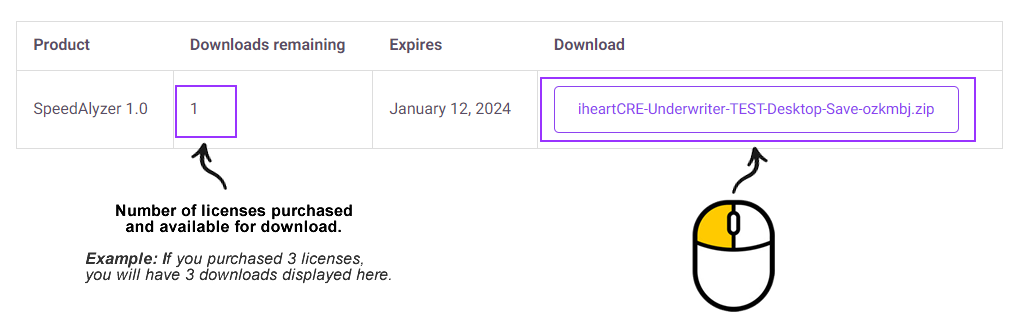
After downloading the SpeedAlyzer zip file to your computer, follow these steps to unzip it.
1. Locate the downloaded file named SpeedAlyzer.zip on your computer.
2. Unzip the file and open the folder, then proceed to unblocking the macros below; DO NOT SKIP the next step.
Unblocking SpeedAlyzer Macros After Downloading
Please perform the following steps before installing SpeedAlyzer™. Remember, you will only have to do this once and you will be all set.
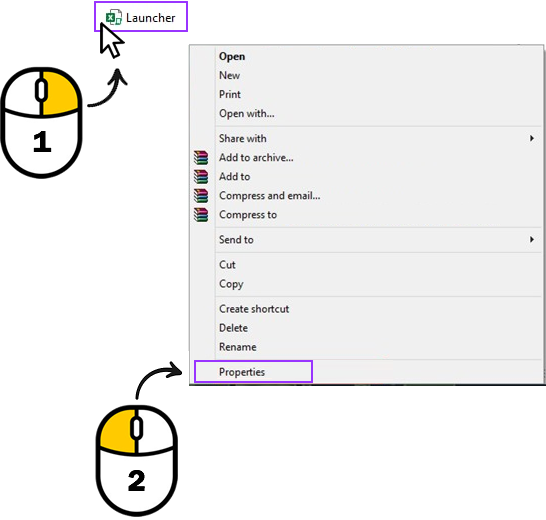
1. From the downloaded and unzipped SpeedAlyzer.zip folder, right-click on the Launcher file
2. Now, left-click on Properties.
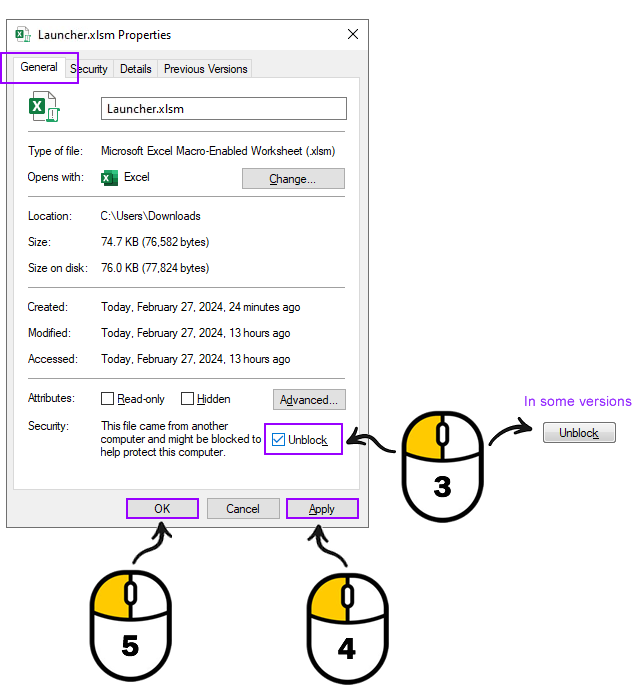
3. From the General tab, locate the Unblock button or checkbox, and proceed to click or check it.
4. Click on Apply button.
5. Then, click the OK button to save change.
Note: If the Unblock option is not displayed, it indicates that the file is already unblocked, click OK or Cancel to exit the Properties window.
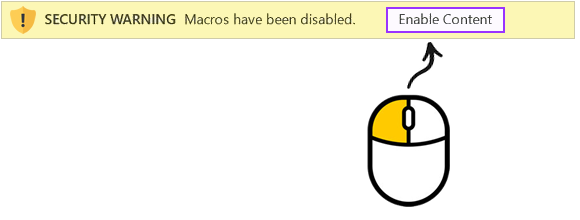
Reminder: If the security prompt reappears when opening the file, click on Enable Content.
Installing SpeedAlyzer Application Using the Set-Up Wizard
Before beginning the setup wizard, ensure that you unblock the macros as instructed in the previous step. The setup wizard will then walk you through the remainder of the installation and configuration process.
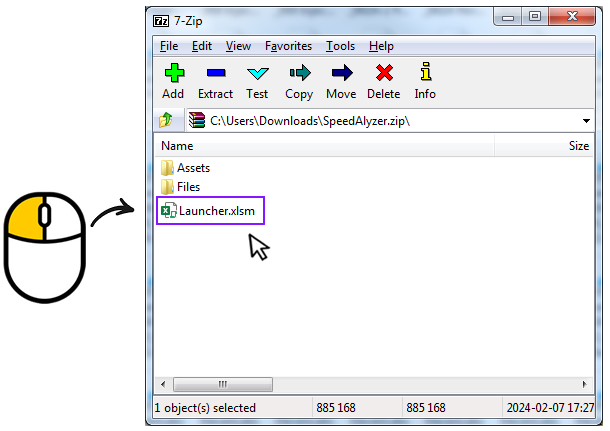
- Locate the Launcher file in the unzipped SpeedAlyzer.zip folder, then double-click it to open the Set-Up Wizard.
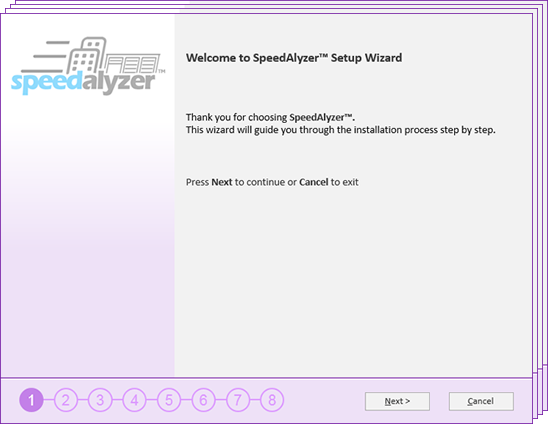
2. The Set-Up Wizard will guide you through each step of the installation and configuration process. Simply follow the onscreen instructions.
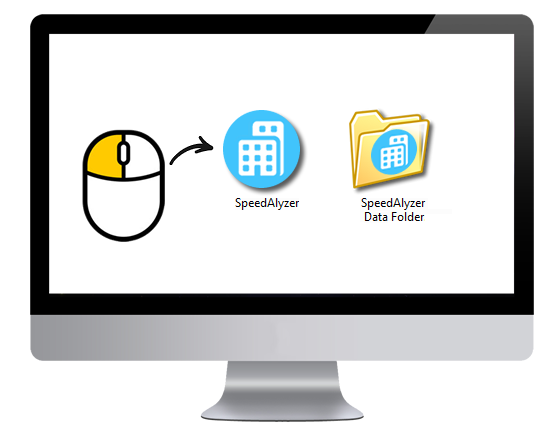
3. Upon successful installation, a SpeedAlyzer Shortcut and SpeedAlyzer Data Folder will be appear on your desktop. To open and start using the SpeedAlyzer Application, simply double-click on the SpeedAlyzer Shortcut.
Installation FAQs
If the “Unblock” option is not displayed, it means the file is already unblocked, and you should be able to open it. If the “Security Warning” appears, click on “Enable Content” to proceed and continue using SpeedAlyzer™.
In Excel, macros are automated sequences of actions or commands that users can record or write using Visual Basic for Applications (VBA). Enabling macros is necessary for these automated processes to run. However, they are disabled by default as a security measure to prevent potential risks associated with malicious macros that could harm your computer or compromise data. Enabling macros should only be done for files from trusted sources to ensure the safety and integrity of your Excel environment. SpeedAlyzer™ software does its best to ensure our macros are safe, prioritizing a secure user experience.
Microsoft blocks macros by default for Excel files downloaded from the internet as a security measure. This precaution is taken to mitigate potential risks associated with malicious macros that could harm your computer or compromise the security of your data. By keeping macros disabled initially, users have the opportunity to carefully evaluate and enable them only for files they trust, minimizing the likelihood of unintended security vulnerabilities.
Adding Trusted Sites on Your Windows PC:
Enhance your browsing on www.iheartcre.com by adding it to your Trusted Sites. This ensures smooth access to content and hassle-free downloads, preventing issues with disabled macros. Follow the steps below for seamless interaction and functionality.
- Click on the Windows icon in the bottom-left corner of your screen.
- Open the Control Panel.
- Locate and click on “Internet Options.”
- In the Internet Properties window, navigate to the “Security” tab.
- Select the “Trusted sites” icon.
- Click on the “Sites” button.
- In the Trusted Sites window, enter www.iheartcre.com in the “Add this website to the zone” field.
- Ensure that the “Require server verification (https:) for all sites in this zone” option is unchecked.
- Click “Add,” then “Close” to save the changes.
- Click “OK” in the Internet Properties window to exit.
By following these steps, you’ll successfully add www.iheartcre.com to your Trusted Sites, helping ensure a smooth experience when accessing content from the website.
If the macro security settings cannot be modified, it is likely that an administrator within your organization has altered the default configurations to prevent changes. In such cases, please contact your administrator for further assistance.
Our user manual and quick start guide are included in the same zip file as SpeedAlyzer™. If you’re a registered user, we’d be happy to send you a new copy. Visit our ‘Contact Us’ page to request copies.
If you didn’t specify a location during the download process, the downloaded file is typically saved to your computer’s default download folder. You can usually find this folder by checking your web browser’s settings or by looking in the “Downloads” section of your browser. Additionally, you can use the search functionality on your computer to locate the file by searching for its name: SpeedAlyzer.zip.